【Performance of the Lenovo ThinkCentre M75q Tiny Gen2’】
Part One|SSD Replacement|Part Two
I Made Up My Mind to Switch to the Lenovo ThinkCentre in Just One Day, After My PC Failed
The possibility of having to replace or deal with a failing PC had barely crossed my mind lately. So when it came to switching PCs immediately, I had absolutely no idea which model would be best for blog production — a completely blank slate, with no prior research whatsoever.

The requirements were that it had to carry over the triple-display production environment on the desk in my study as it was. In other words, the choice would have to come from among the ultra-compact mini PCs — Micro PCs or NUCs — specialised for saving space, the kind the author of this small-world “AUDIO STYLE” has often mentioned.
As always, the cheaper the better on price. That said, compromising too much on specs means it becomes obsolete sooner and causes trouble later. I am not aiming for the most powerful PC imaginable, but I do want the best value-for-money choice available in 2022–2023. Unfortunately, I was right in the middle of a massive blog migration, so there was simply no room to spend days leisurely agonising over which PC to pick.

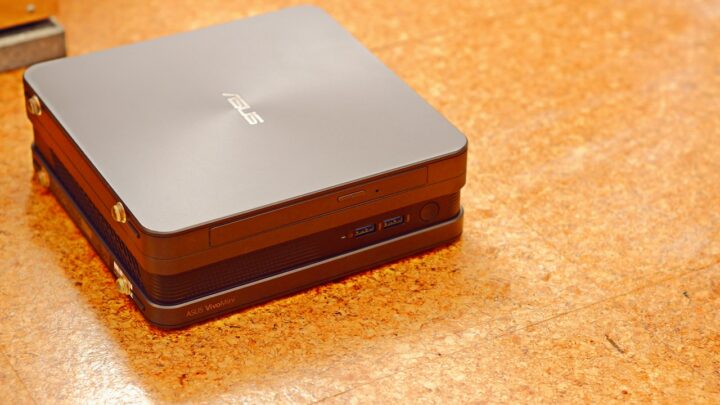
In recent times, sourcing PC components has become difficult due to the state of the world, and BTO or custom-configured orders have increasingly been taking a considerable number of days to arrive — but in my situation, immediate delivery was non-negotiable. Since I had originally been an ASUS two-machine user, I naturally also compared the ASUS VC66 and PB60/PN60 series, which are the successors to the ASUS VivoMini VC65. However, compared to five years ago, ASUS had become a brand that is, across the board, difficult to call the best in value for money — and regrettably, they dropped out of contention. One could say that ASUS has moved from being chosen for value to being chosen for the brand name itself.
And so, unusually for the author — who normally spends months, or sometimes the better part of a year, gathering information before a purchase — after just one day of research, the decision was made: the ThinkCentre M75q Tiny Gen2 immediate-delivery model from the Lenovo direct sales site. The CPU fitted is the 4th-generation AMD Ryzen 5 PRO 5650GE. I purchased it at the beginning of October 2022 for ¥55,570 (tax and shipping included).

 ポチップ
ポチップ
Why the Lenovo ThinkCentre M75q Tiny Gen2 Is So Highly Regarded Online
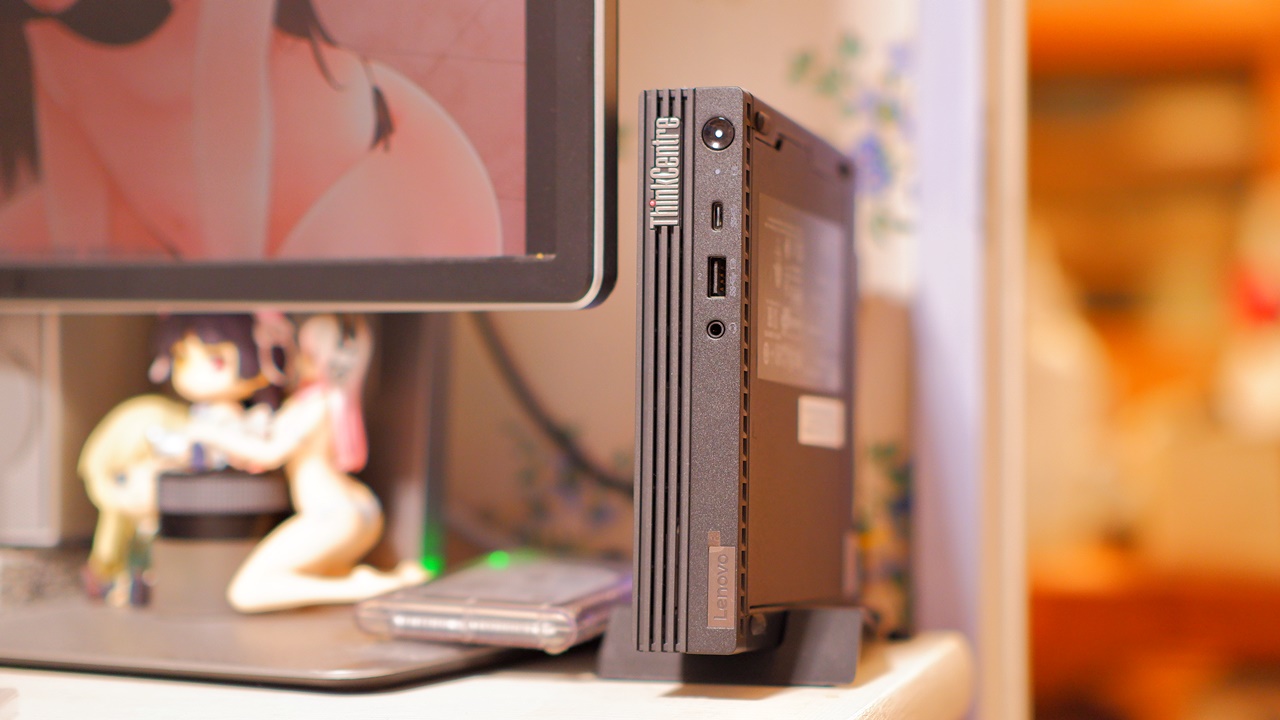
The Lenovo ThinkCentre M75q series had originally been highly regarded by users wanting a more compact desktop PC — it sold for around ¥30,000 at retail, an absurdly low price relative to what was inside, and was valued as an ultra-high-value Micro PC capable of handling even light gaming. Boosted further by the rise in remote working demand in recent years, it had also become a fairly familiar mini PC in SOHO contexts and among gadget-enthusiast bloggers.
1st generation: Jul 2018 — ThinkCentre M715q Tiny|Ryzen 5 PRO 2400GE / Ryzen 3 PRO 2200GE
2nd generation: Dec 2019 — ThinkCentre M75q-1 Tiny|Ryzen 5 PRO 3400GE / Ryzen 3 PRO 3200GE
3rd generation: Oct 2020 — ThinkCentre M75q Tiny Gen2|Ryzen 7 PRO 4750GE / Ryzen 5 PRO 4650GE / Ryzen 3 PRO 4350GE
4th generation: Dec 2021 — ThinkCentre M75q Tiny Gen2|Ryzen 7 PRO 5750GE / Ryzen 5 PRO 5650GE
The ThinkCentre M75q Tiny Gen2 that I purchased is the AMD Ryzen 4th-generation model — the less expensive one, fitted with the Ryzen 5 PRO 5650GE. Up through the 2nd-generation Ryzen, the fact that it could be had for just over ¥30,000 made it quite a talking point, and the 3rd generation saw the entry-level retail price climb into the ¥40,000 range, yet it remained enormously popular thanks to its outstanding balance of price and performance. After that, an update to the 4th-generation Ryzen at the end of 2021 brought further performance gains, but retail prices rose accordingly — the Ryzen 5 PRO 5650GE in a near-minimum configuration crept up into the ¥50,000–60,000 range, and the Ryzen 7 PRO 5750GE into ¥70,000–80,000. On top of that, from the time of its launch, supply could not keep up with demand for reasons related to the state of the world, and delays, temporary suspensions, and other shortages continued until around the summer of 2022. As a result, the festive excitement around its exceptional value for money seems to have settled down somewhat.
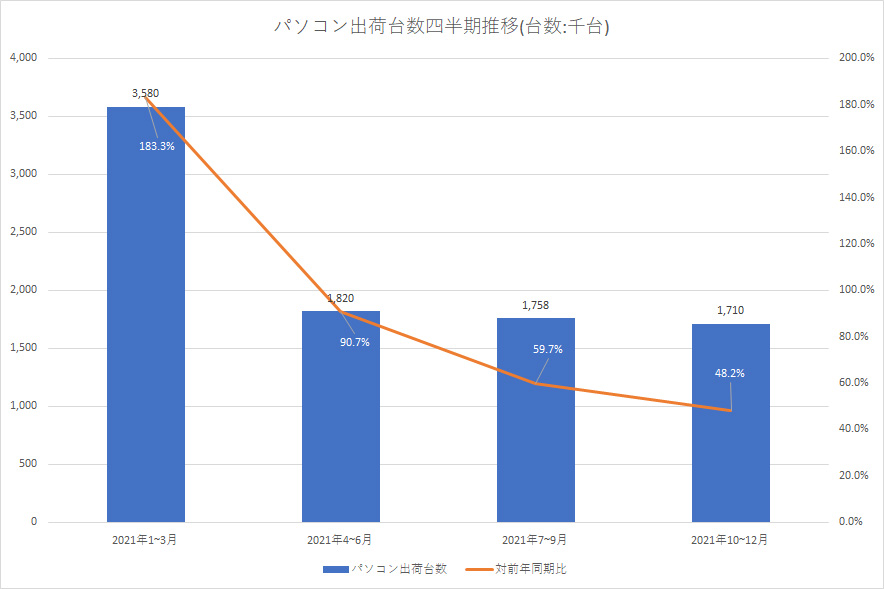

PC demand had one peak in 2020, when remote working demand and falling retail prices coincided, but after that, the rebound decline, combined with tightening component supply, pushed overall prices upward, and 2022 saw a significant drop in sales volumes.
That said, when comparing the ThinkCentre M75q Tiny Gen2 against other manufacturers’ ultra-compact PCs in the same class — in terms of CPU performance and overall configuration — even now that prices have risen into the ¥50,000 range, it still appears to hold its position as the relatively best value for money, without question. Other manufacturers’ PCs have seen equivalent or greater price increases for the same reasons, and setting aside any preference for particular brands, I concluded that if price-to-performance ratio is the priority, the ThinkCentre M75q Tiny Gen2 remains the best choice even now. Incidentally, Lenovo has long been the No. 1 PC manufacturer both globally and in Japan by market share.
The ThinkCentre M75q Tiny Gen2, When It Arrived, Was More Beautiful Than Expected
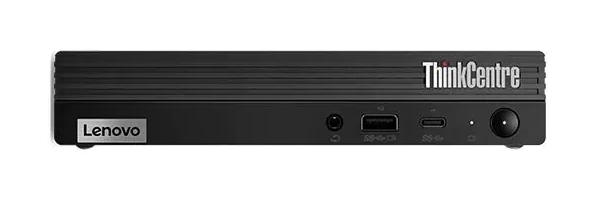
To be honest, from the impression I had formed looking at images on the official site and various users’ pages through a PC screen, I had no particularly favourable impression of the ThinkCentre M75q Tiny Gen2’s front panel design. If anything, I had the vague sense that the older M75q-1 Tiny with its red accent colouring was more attractive. And even that — going back five years to the M710q Tiny, the reason I chose the NEC Mate equivalent rather than the Lenovo itself was that the black casing did not suit my interior, and I had wanted something in a lighter, more off-white colour if at all possible.
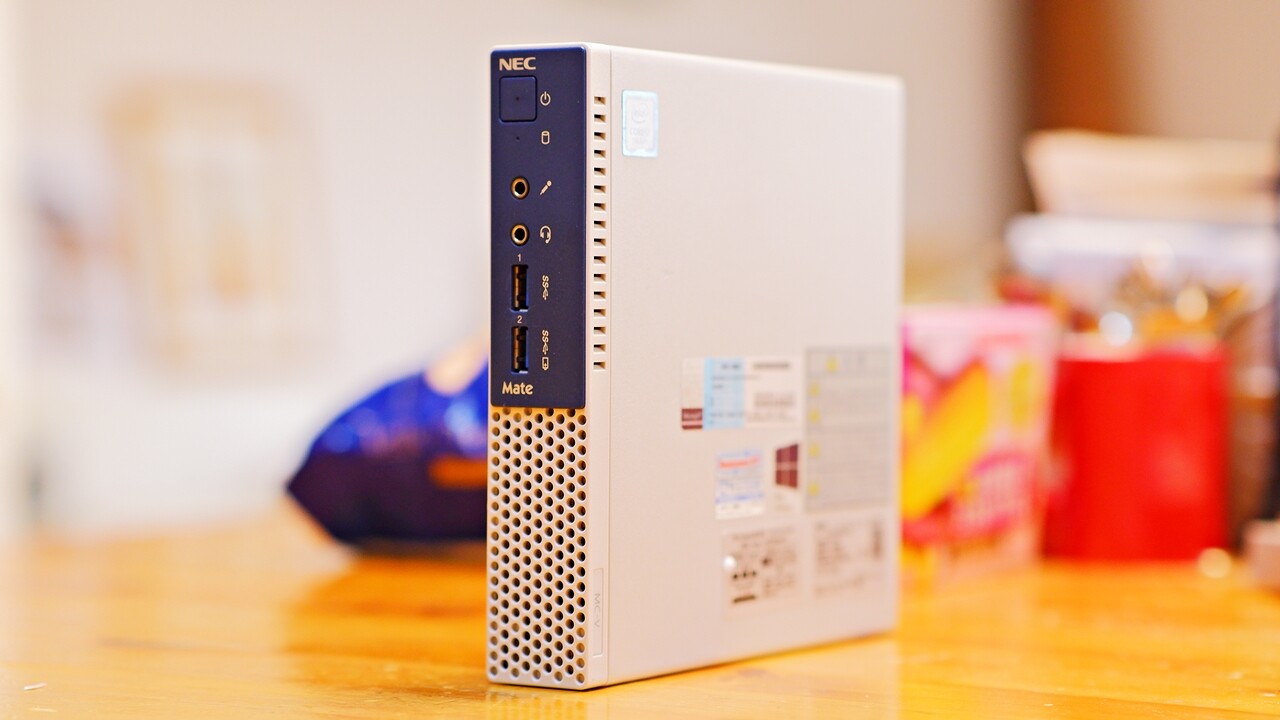
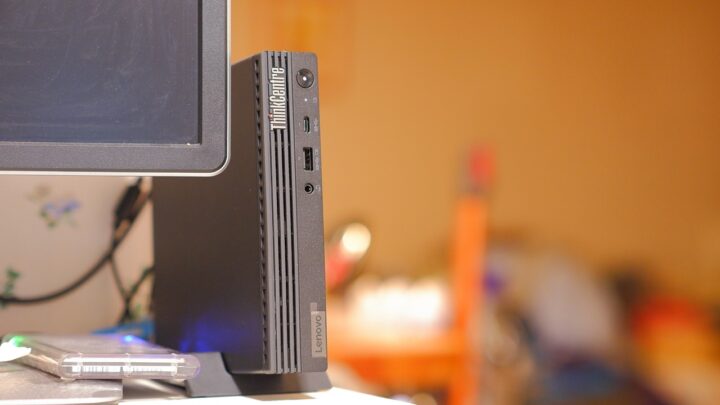
Yet when I actually placed the ThinkCentre M75q Tiny Gen2 upright on the desk and looked at the front panel in person, the matte finish and the texture of the vertical-slit vents were excellent, and the three-dimensional form gives it a premium feel that looks genuinely impressive. If anything, it looks far better on the desk than the NEC Mate with its retro 1990s blue-and-grey aesthetic. The way only the dot of the “i” in ThinkCentre glows red when powered on is rather stylish as well.
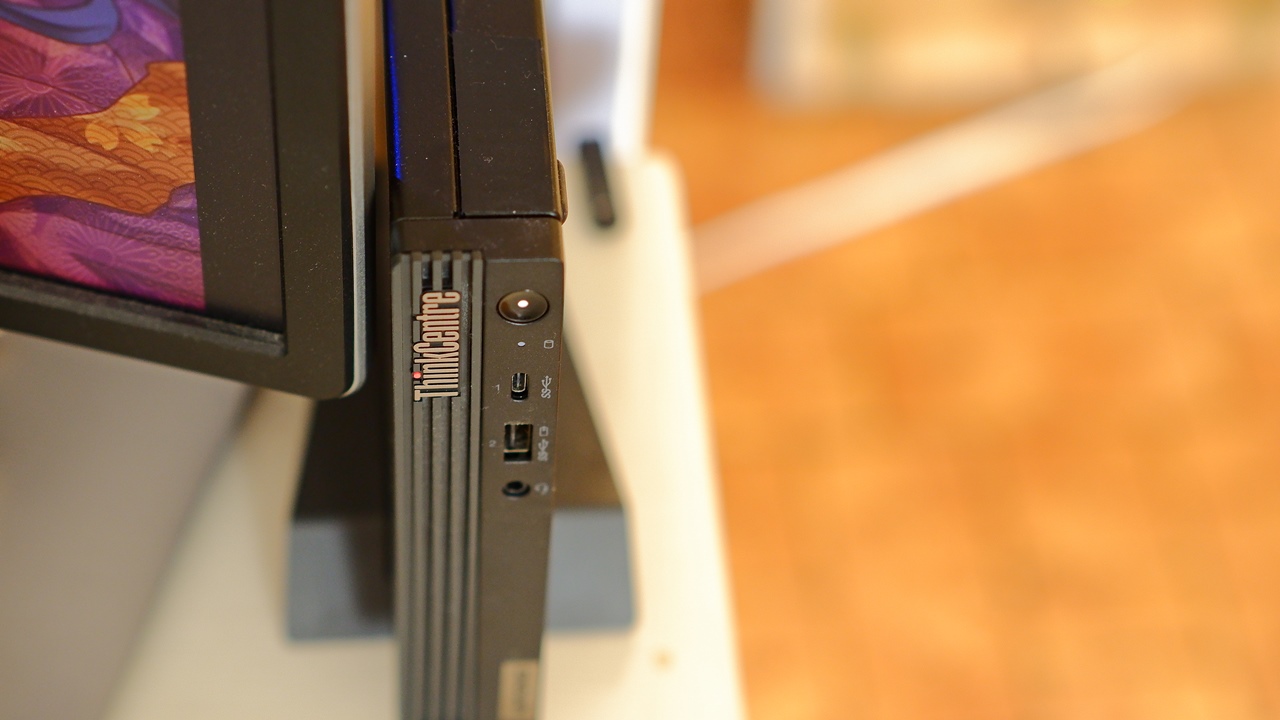
With ultra-compact PCs of this kind, many people place them directly on the desk right in their line of sight, and whenever your eye catches that front panel, if the design is good it does quietly lift your motivation. The one weakness, if there is one, is that the power button is extraordinarily difficult to press. It requires a firm, deep press before it registers, so it is quite common to think you have turned it on and find it has not responded at all. It is a small thing, but the power button design is honestly baffling.
The Fitted CPUs: AMD Ryzen 5 PRO 5650GE and Ryzen 7 PRO 5750GE
As of autumn 2022, the CPUs available for the Lenovo ThinkCentre M75q Tiny Gen2 were two options: the 4th-generation Ryzen 7 PRO 5750GE or the Ryzen 5 PRO 5650GE. For the immediate-delivery models, the options were as follows ↓.
※ Prices at the time of purchasing the immediate-delivery model in October 2022 (prices vary depending on the period and time of purchase)
There are differences in configuration beyond the CPU — memory, SSD, and so on — but the question is how one views the +¥29,000 for the Ryzen 7 PRO 5750GE. In my case, I went with the Ryzen 5 PRO 5650GE for the sake of immediate delivery and value for money, but if waiting for delivery is not a problem, opting for a customised configuration with the Ryzen 7 PRO 5750GE and trimming out any unnecessary options will remove the sense of poor value and leave you a happy person.
Ryzen 5 PRO 5650GE — 3.4GHz, 6 cores, 12 threads — ※GPU: 7 cores, 1.9GHz
Ryzen 7 PRO 5750GE — 3.2GHz, 8 cores, 16 threads — ※GPU: 8 cores, 2.0GHz
The Ryzen 5 PRO 5650GE actually has a higher base clock per core, but the Ryzen 7 PRO 5750GE has 33% more cores and threads, so the headroom for multitasking is in a different league. The GPU clock is also superior on the Ryzen 7 PRO 5750GE at 8 cores / 2GHz versus 7 cores / 1.9GHz, which results in an overall benchmark score that is around 10–20% better. If you do a lot of work with image editing software or video, go straight for the Ryzen 7 PRO 5750GE without hesitation. Incidentally, when compared against the equivalent Intel generation — the 11th-generation Rocket Lake — the Ryzen 7 PRO 5750GE surpasses the Core i9-11900T, while the Ryzen 5 PRO 5650GE is on par with the Core i7-11700 (standard) in benchmark results. The fact that a low-cost mini PC can comfortably outperform a large high-end PC from not so long ago is quite astonishing — CPU generational progress really is something. ※ The GE and T suffixes denote 35W low-power variants from AMD and Intel respectively.

With the previous machine, the ASUS VivoMini VC65, the 6th-generation Core i5-6400T and Core i7-6700T felt noticeably different in terms of perceived processing performance. In the case of the Ryzen 7 PRO 5750GE and the Ryzen 5 PRO 5650GE, however, the difference in everyday practical use is not quite so stark, and at present the AMD Ryzen 5 PRO 5650GE is more than capable of handling everything smoothly — almost too smoothly — so I doubt I will feel any dissatisfaction for some time to come.
A Smart, Efficient Internal Layout
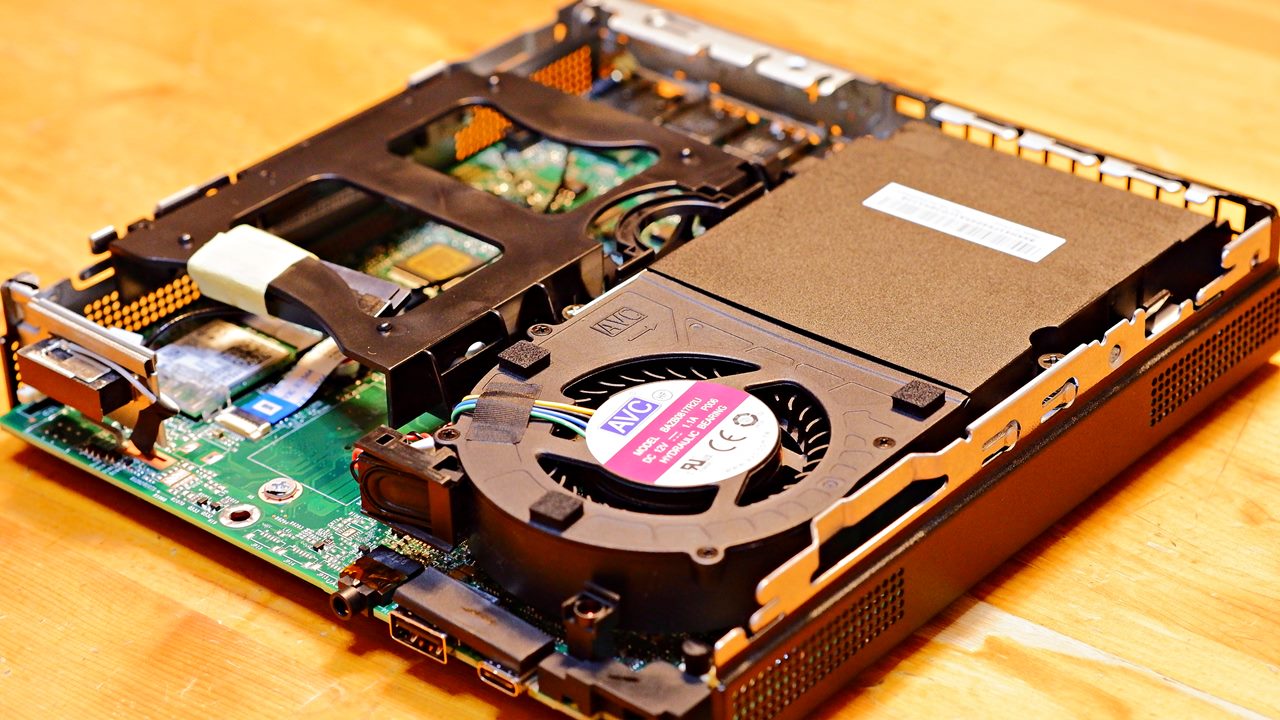
I had the same thought a few years back with the Lenovo ThinkCentre M710q Tiny (Intel Core i7-7700T): there is no wasted space in the layout, everything inside is arranged with a logical clarity, and it is genuinely beautiful. Incidentally, the internal layout of the casing has remained essentially the same across the five generations from the ThinkCentre M710q Tiny to the ThinkCentre M75q Tiny Gen2. In this regard, when comparing it against the rival HP ProDesk 405 G8 DM, I cannot help feeling that the Lenovo machine has the advantage.
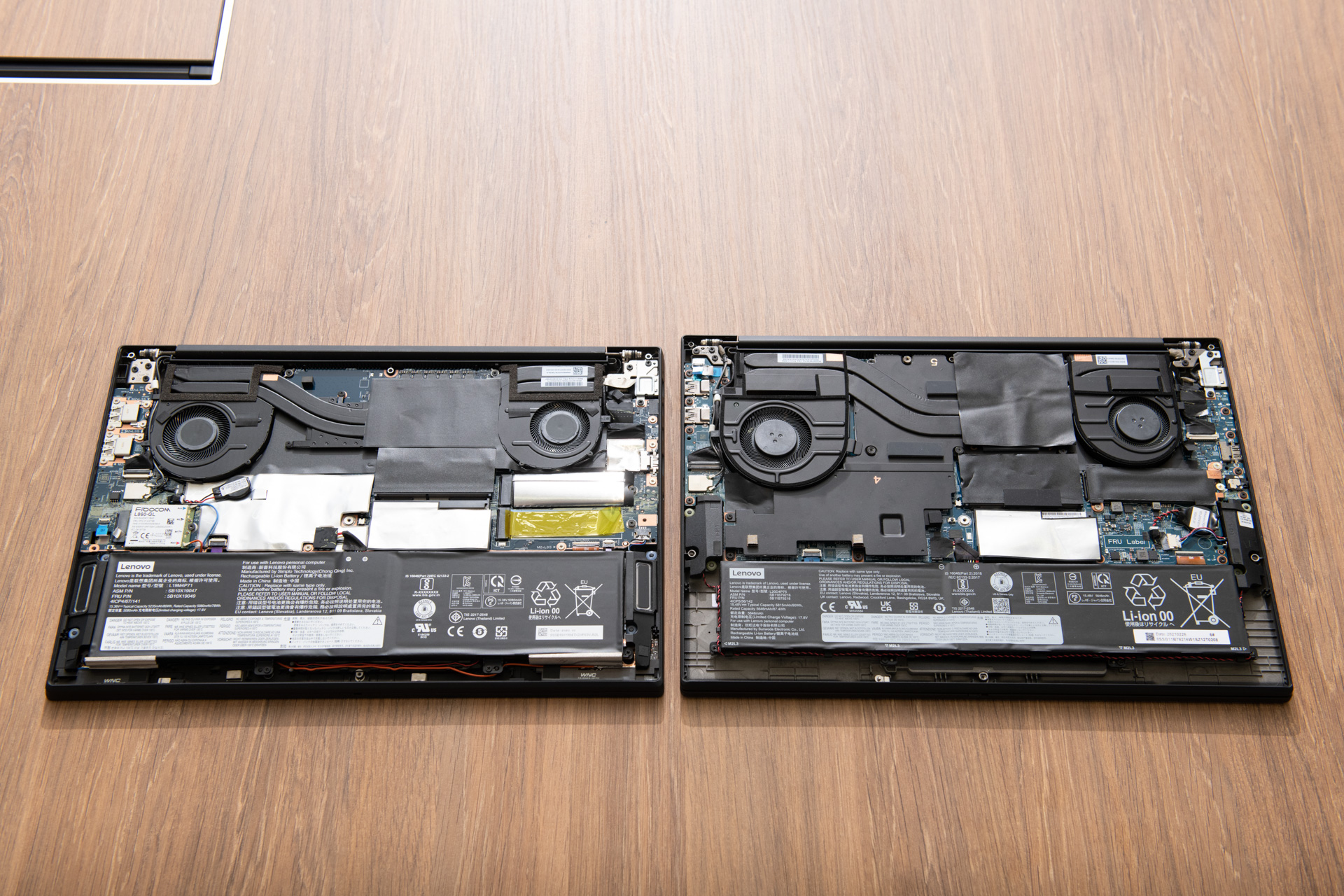
The ThinkCentre chassis allows toolless access without a screwdriver, and it is designed so that components such as memory, SSD, and HDD can be swapped out with ease. Every PC I had owned before required screws as a matter of course, so when I first accessed the interior of the ThinkCentre M710q Tiny, I spent a little while puzzling over how to remove the SSD and other parts — but once you understand how it all works, you find yourself genuinely impressed by the rational structure that does away with screws entirely.
 Removal and Replacement Videos — ThinkCentre M75q-1 (11A4, 11A5, 11A6, 11A7)
As a result, upgrading specs through component replacement is straightforward on every generation of the ThinkCentre Tiny, and the manufacturer itself openly publishes the parts replacement procedure and operates on the assumption that users will access the internals at their own risk — which means there is none of the frustrating “do not open” rigidity that some manufacturers impose.
Lenovo Immediate-Delivery Model or Custom Order?
The Lenovo immediate-delivery model came with a number of things I personally had no need for: a Bluetooth wireless keyboard and mouse, a 256GB NVMe SSD that was clearly going to need replacing due to insufficient capacity, 8GB of memory that would need supplementing right away, and a vertical stand I already owned, among other unnecessary bundled items. However, the on-site warranty period is three years. And rather than being customisable, its value lies in a fixed, attractively priced package where there is, at present, little practical benefit to be gained from customising it to cut costs. Incidentally, the immediate-delivery model was listed as shipping within one to two days of ordering, and as promised, it arrived at my door the morning of the day after next — effectively within 36 hours of ordering.
ポチップ
In general, Lenovo’s custom-configured models can, depending on the combination, sometimes work out cheaper than the immediate-delivery model by actively removing unnecessary components. As an upper-tier option, there was also the 11JJCTO1WWW — a Kakaku.com exclusive model with the Ryzen 7 PRO 5750GE at ¥79,970 — but this was a custom-order-only price, and the warranty was one year only (extending to three years cost an additional ¥4,950).
One well-known issue with Lenovo’s custom-configured models is that delivery times are simply very slow, and the ThinkCentre M75q Tiny series is no exception — over the years I had frequently come across people grumbling that they had ordered one and it still had not arrived. With the upper-spec Ryzen 7 PRO 5750GE custom model, one could have brought the total down to ¥74,270 by: downsizing memory to 8+4 = 12GB (−¥6,600), adding a wireless LAN adapter (+¥3,300), removing the keyboard (−¥2,200), removing the mouse (−¥1,100), adding an extra DisplayPort (+¥2,200), adding the 90W power adapter (+¥1,100), removing the vertical stand (−¥1,100), and removing the tool-less chassis (−¥1,100). But the estimated delivery was shown as six weeks, and I reluctantly gave up on it. And what is more, while writing this article I tried putting together the same custom configuration again to check, and the delivery estimate had stretched to three months.
In the end, though — choosing the immediate-delivery model was absolutely the right call.
The only things I wished I could have added as options not included in the immediate-delivery model were:
· 90W AC adaptor ⇒ Cheaper than buying the part separately later
· Adding a DisplayPort ⇒ Three-display output via DisplayPort + DisplayPort + HDMI
· No need for a vertical stand ⇒ Already have the old one
These were the three main points. However, once the in-stock model arrived and I actually got it running, it turned out that none of them were really necessary after all. I will go through each one below.
Do You Need a 90W / 135W High-Capacity AC Adaptor?
With the ThinkCentre M75q-1 Tiny — two generations back — it was well known that swapping the bundled 65W AC adaptor for an optional 135W/90W power adaptor would improve CPU performance in benchmarks. This was because the higher-capacity adaptor allowed the low-power CPU’s power consumption (TDP) to be pushed beyond its default 35W ceiling, up to around 90W. For the GE low-power models, which have limited thermal headroom, this was something of a forbidden technique — but if you were willing to overlook the power draw and heat output, replacing the AC adaptor was a way of physically raising the performance ceiling.
 ポチップ
ポチップ
However, from the ThinkCentre M75q Tiny Gen2 onwards — that is, the third-generation Ryzen models — the power management system was changed, and consumption is now capped at 65W. As a result, connecting a higher-capacity AC adaptor makes virtually no difference to benchmark scores.

That said, in environments where the base power consumption is already high — due to large dual-channel memory upgrades, NVMe M.2 SSDs from power-hungry brands, additional SATA SSDs, or powering various external USB devices — the effective maximum power available to the CPU may in practice be reduced. So while it will not improve performance, there may be some benefit in fitting a 90W AC adaptor to prevent performance from dropping, by giving the power budget a bit more headroom. ※ In my setup, on top of the added memory and SSDs, I was drawing a combined maximum of around 30W from PC audio, iPhone charging, camera battery charging, an external USB display adaptor, a supplementary LED light, and so on…
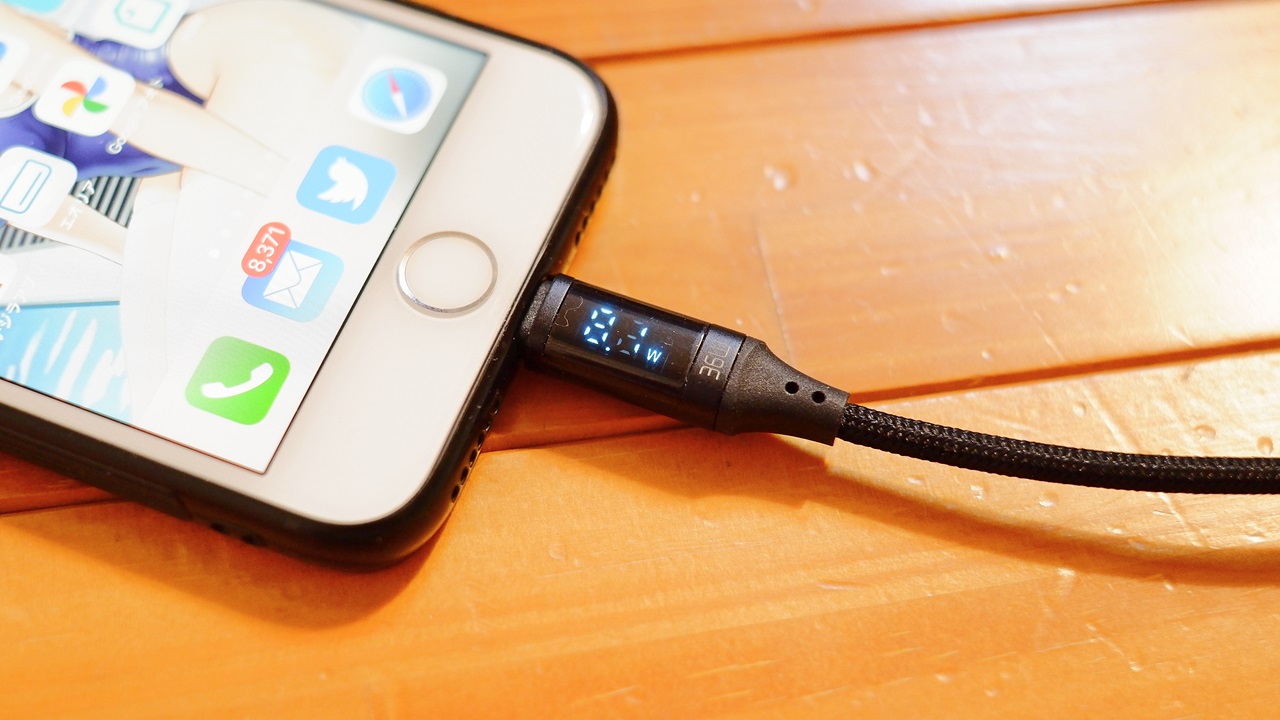
Also, from experience, the design and capacity of the AC adaptor does seem likely to have an effect on PC audio sound quality (…though whether the 65W, 90W, or 135W adaptor sounds best is something you would only know by trying). The power adaptor can be purchased separately at any time, so I would like to pick one up when a Lenovo mail-order sale for power adaptors comes along eventually.

 ポチップ
ポチップ
Replacing the Excessively Long Power Cord with a Short 20cm AC Cable
The Lenovo ThinkCentre M75q Tiny comes with an external AC adaptor as mentioned above, but the total length runs to 10.5cm for the adaptor body (12cm including the protruding connector) plus 1.8m of DC cord — and then a detachable C5 Mickey Mouse-type power cord (1m) connects on top of that, bringing the total to 3 metres. This presumably reflects an office environment in mind, but routing all of that behind my PC desk would result in a hopeless tangle of cables in my study…
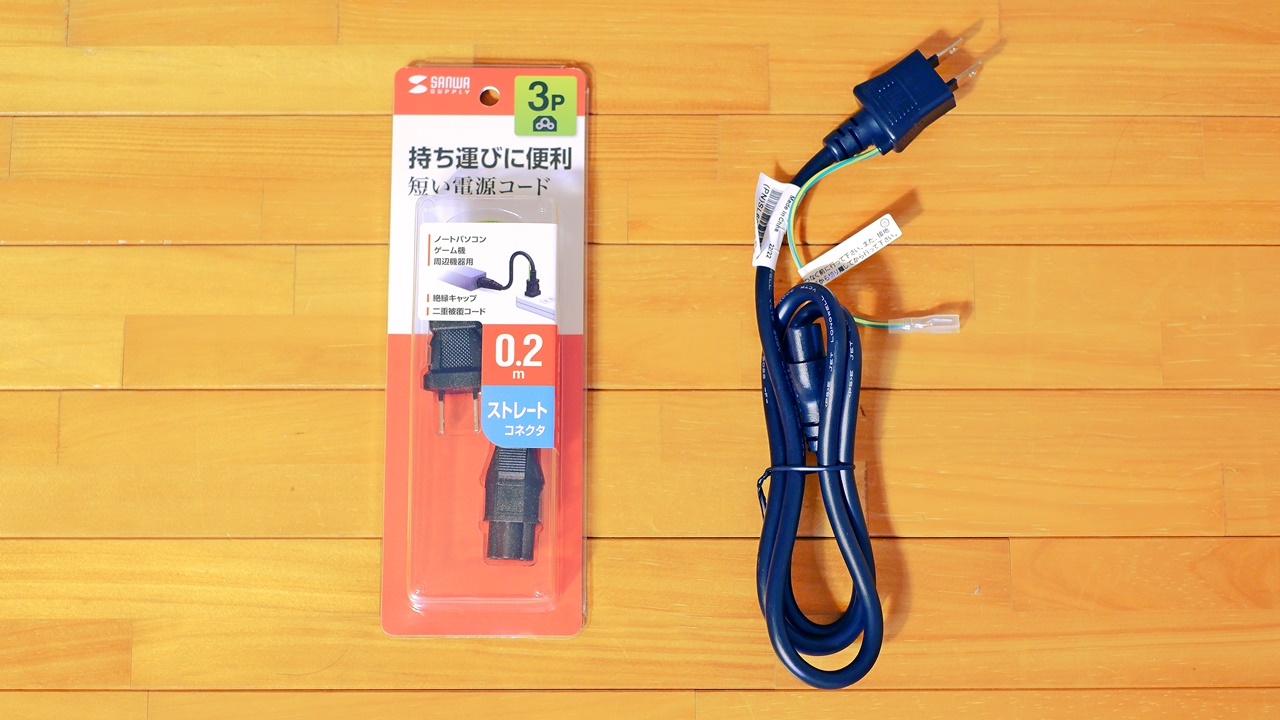
The 1.8m DC cord is not detachable from the adaptor, so I can bundle it up somehow since it is thin enough, but the AC cord section is thick and really gets in the way. I therefore sourced a separate short 20cm AC cord as a replacement. 3-pin C5 Mickey Mouse-type cables have surprisingly few options available, so the Sanwa Supply KB-DM3S-02 is a handy find.
 ポチップ
ポチップ
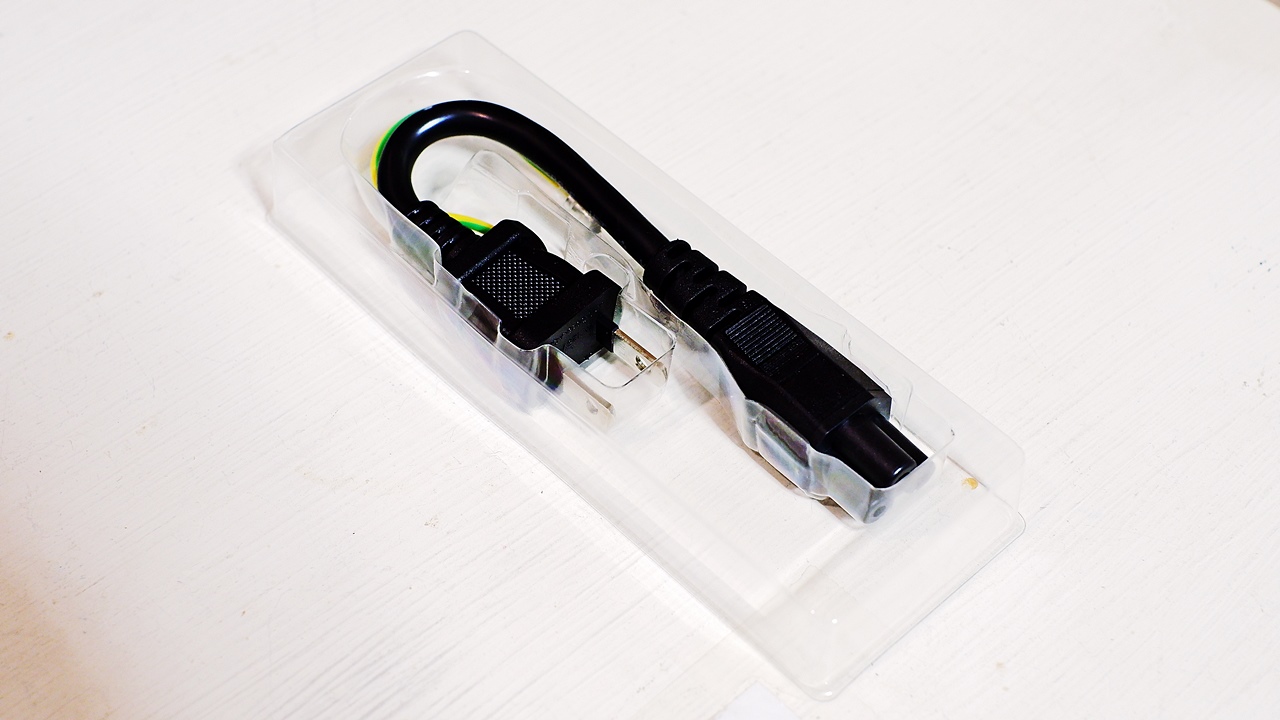
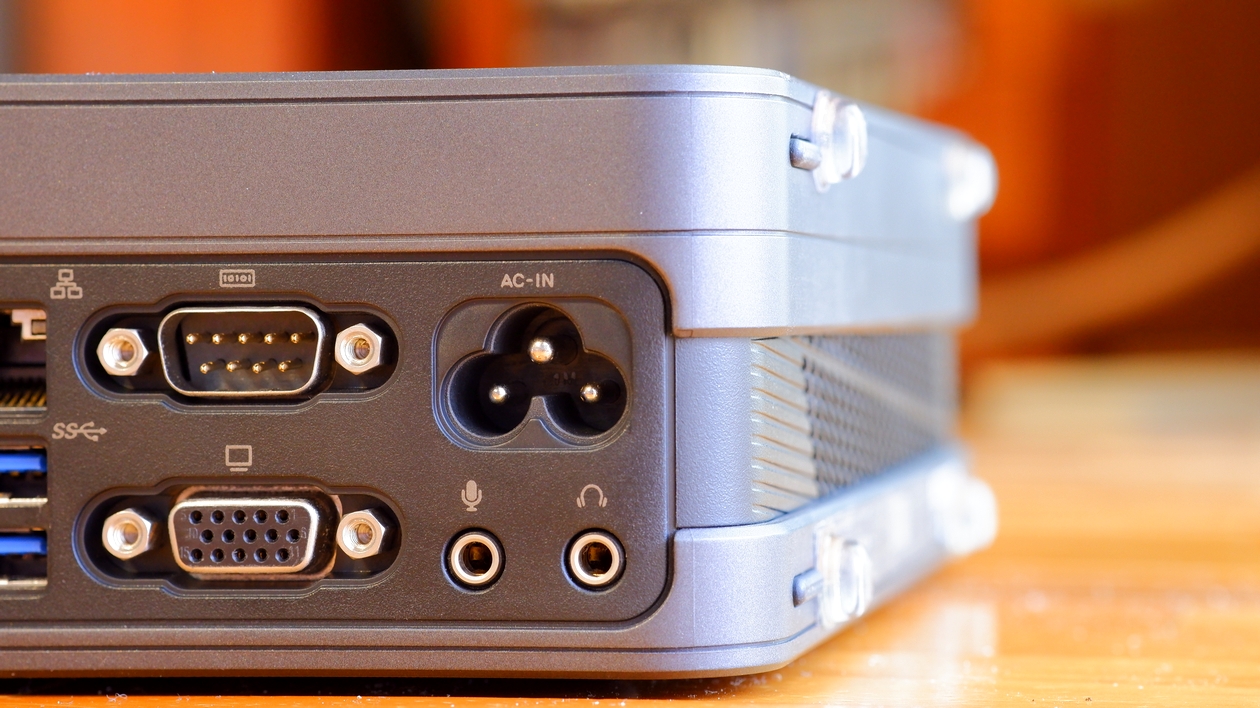
As it happens, the previous ASUS VivoMini VC65 also had a C5 Mickey Mouse AC inlet. Had it been the more common 2-pin figure-of-eight type, I could have taken a sound quality improvement approach using the Sir Tone power cable VVF-2508…
Adding a DisplayPort to the Single Standard Output for Three-Display Operation
And here is where things get complicated. My desk setup runs three monitors in a triple-display configuration, but the ASUS VivoMini VC65 I had been using until now only had two simultaneous digital video outputs, so I had been inserting an external GPU in the form of a USB display adaptor on one of them. If the PC itself were equipped with three digital video outputs, there would be no need to bother with a USB display adaptor — which consumes more power and is inferior in performance to boot.
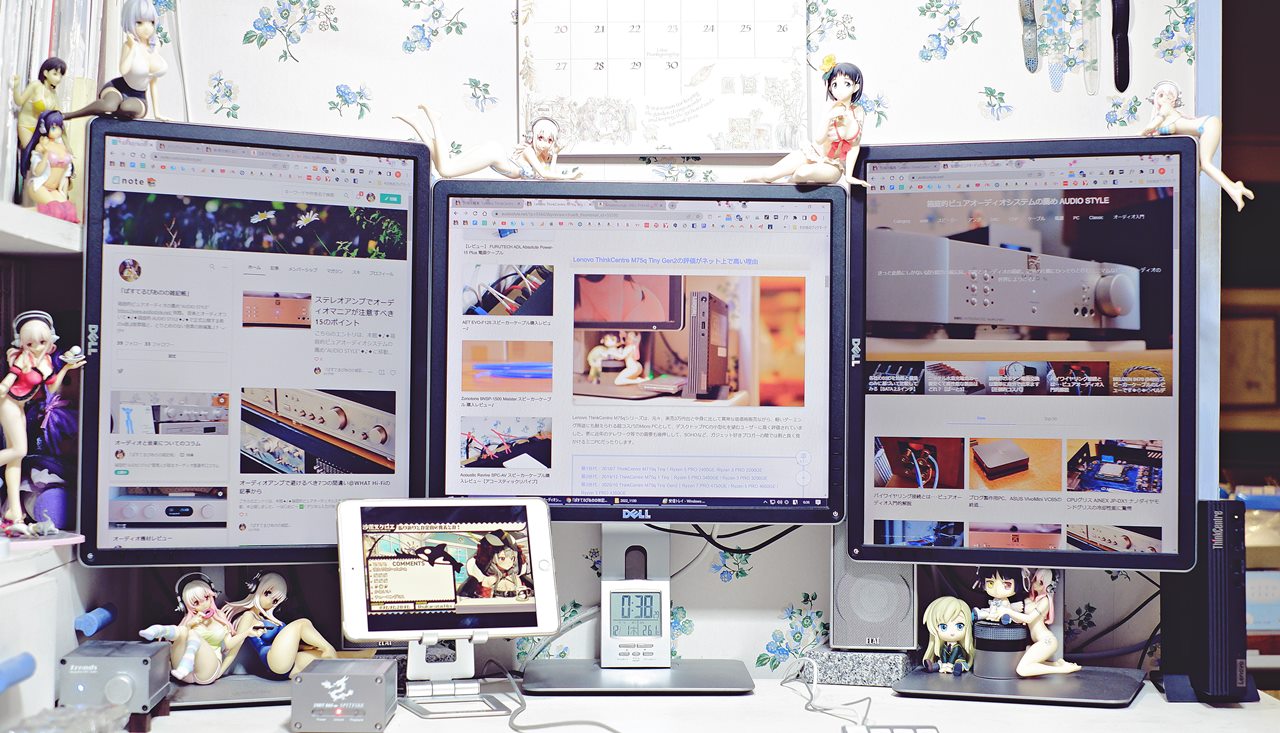
Incidentally, there is an earlier episode worth recounting here. When I was previously using the old ThinkCentre M710q Tiny (or rather, the NEC equivalent model), I let it go rather quickly, and for good reason: both of the two DisplayPort outputs would produce noise on screen during use, making the machine effectively unusable. It may have been a compatibility issue with the DELL P1914S monitors, but the DisplayPort connection recognition was simply unstable, and no amount of trial and error resolved it. That experience left me with a lingering unease about Lenovo machines and compatibility — but I told myself that the ThinkCentre M75q Tiny Gen2 was a different design generation entirely, and moreover was built around AMD’s GPU rather than Intel’s, so surely it would be fine… and yet, sure enough, compatibility problems turned up here as well.
 ポチップ
ポチップ
At first, during the initial setup of the newly arrived PC, I connected the monitor via a DisplayPort cable without giving it a second thought — only for the screen to go blank partway through the OS setup, leaving me unable to proceed. This happened twice in a row, and I initially suspected the machine was defective out of the box. On the third occasion when the screen went black, I tried connecting an HDMI cable to the adjacent monitor (all three are DELL P1914S) more or less on a whim, and the display came up without any fuss at all.
In the case of the ThinkCentre M75q Tiny Gen2, the noise-on-screen problem with DisplayPort output that I could never solve on the old M710q Tiny does not occur at all — but in its place, the monitor connected via DisplayPort tends to drop out intermittently on reboot or when waking from suspend. It does sometimes display without issue, which is what makes it so frustrating. When the screen fails to appear, physically unplugging and re-plugging the DisplayPort cable brings it back — but that is obviously tedious, and not something one can keep doing indefinitely. So for the ThinkCentre’s DisplayPort output, I have resorted to what I introduced previously as a special three-stage conversion chain of DisplayPort → HDMI → DVI, feeding the signal into the monitor’s DVI input.
DisplayPort → HDMI adaptor → HDMI cable → DVI adaptor
Incidentally, this conversion method produces none of the above problems at all. The DELL P1914S has no HDMI input so I cannot confirm, but I suspect that DisplayPort → HDMI adaptor → HDMI cable alone would also work fine. The maximum resolution (and therefore the range of monitor sizes supported) differs depending on whether you use DisplayPort, HDMI, or DVI-D, but since it is all digital, image quality itself does not change.
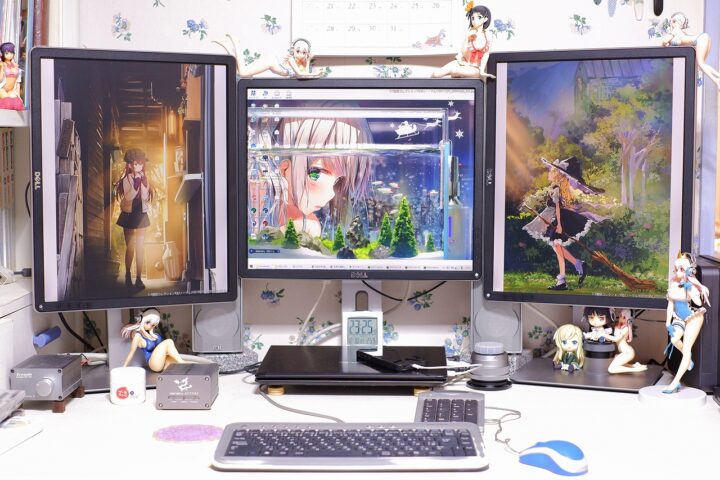
This is a compatibility issue between the monitor and the PC itself, so cleanly determining which side is at fault is difficult, and in reality I imagine it is a rare case. That said, given how things stand, if I had added a DisplayPort output via the customisation options, it would be virtually certain to become unstable in my environment without HDMI conversion in between. So for now, as with the ASUS VivoMini VC65 before it, I have settled on running three displays the same way as before: HDMI + (DisplayPort with DVI adaptor) + USB display adaptor.

It is worth noting that, although it is not selectable as a customisation option at present, adding USB Type-C or HDMI output via Lenovo service parts may well allow three-display output without issue.
Lenovo Official: Looking for Service Parts?
Service parts that can also add video outputs to the ThinkCentre M75q Tiny Gen2.
- BLD M75q-2 BTB HDMI card 5C50W00889
- BLDM75q-2BTBDPcard DisplayPort 5C50W00888
- DP to USB-C port punch out Card 5C50W31953 ※ Requires a USB Type-C → DisplayPort or HDMI conversion cable
That said, sourcing USB Type-C or HDMI expansion parts after the fact is a rather borderline proposition once you factor in the cost of the parts plus shipping. And while you do see people adding the more versatile USB Type-C port, hardly anyone seems to bother adding HDMI. When it comes to video output options, the rival HP ProDesk 405 G8 DM, which comes with three display-capable ports as standard, starts to look like the better deal.
The Vertical Stand Is Not Compatible with Older Models
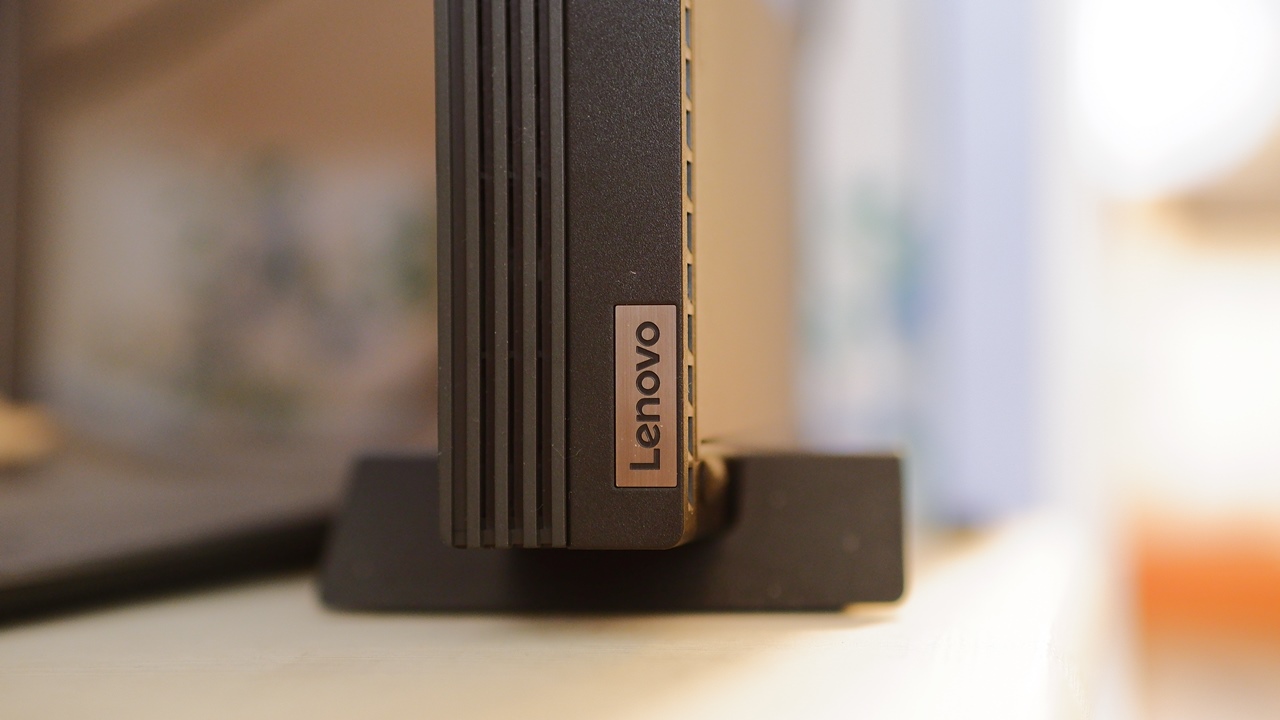
For the vertical stand, I had originally planned to reuse the stand I had kept from the older ThinkCentre M75q-1 Tiny. However, when the ThinkCentre M75q Tiny Gen2 arrived and I actually tried it, the chassis turned out to be ever so slightly thicker, and the old stand simply would not fit. The in-stock model does come with a vertical stand included, but had I removed it as a customisation option, I would have been forced to purchase one separately afterwards.
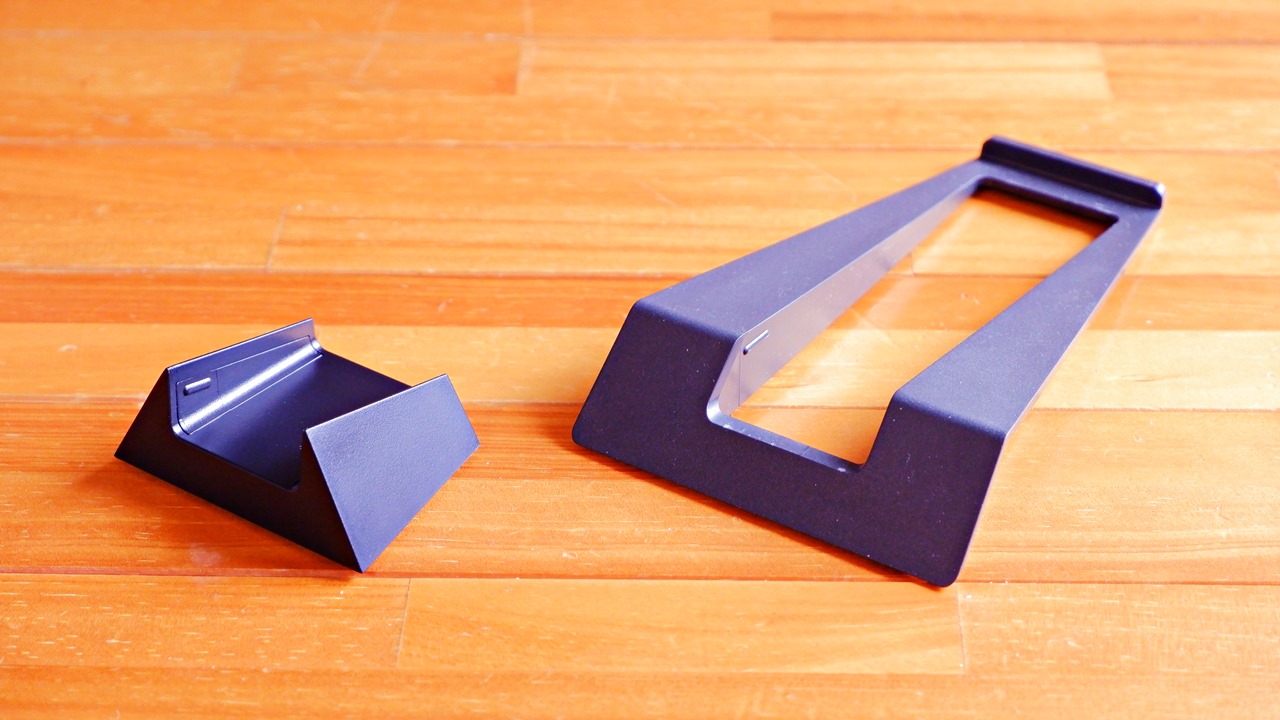
The new V-shaped vertical stand introduced with the Tiny Gen2. Its footprint is on the wider side relative to the chassis, and I wondered if it might feel obtrusive — but actually it creates no sense of visual bulk at all, looking rather elegant, and with the machine mounted on it the overall design balance is arguably more attractive. That said, the real problem with this vertical stand lies elsewhere: it wobbles when you touch it. The fit is so loose that the machine is entirely unstable, and without holding it in place while plugging or unplugging cables, it will rock in any direction. The chassis is essentially just sitting on top of the stand rather than being secured to it in any meaningful sense. If something were to knock the unit, it would very likely topple off the desk. It also offers no resistance to vibration whatsoever, so some kind of fix to keep it in place would really be desirable.
 ポチップ
ポチップ
The CPU Cooler Fan Is a Little Noisy — Though Cooling Performance Is Excellent
It has only been a few days since I started using it, but the one thing that has emerged as a clear problem for me is the CPU cooling fan noise. I can personally tolerate a certain amount of fan noise when the machine is working hard under load — but even at its minimum idle speed, it is already faintly audible. Several other reviews I had read described it as “near-silent at idle,” so I had not been particularly worried, and this caught me off guard. Sensitivity to noise is of course highly personal, but the sound is roughly comparable to the fine bubbling of an air stone in a nearby fish tank… I wonder if I drew a dud in terms of fan unit variation — or perhaps, as is not uncommon, the CPU fan fitted varies by production batch. For reference, the CPU cooler installed in my unit was an AVC BAZB0817R2U, made in Taiwan.
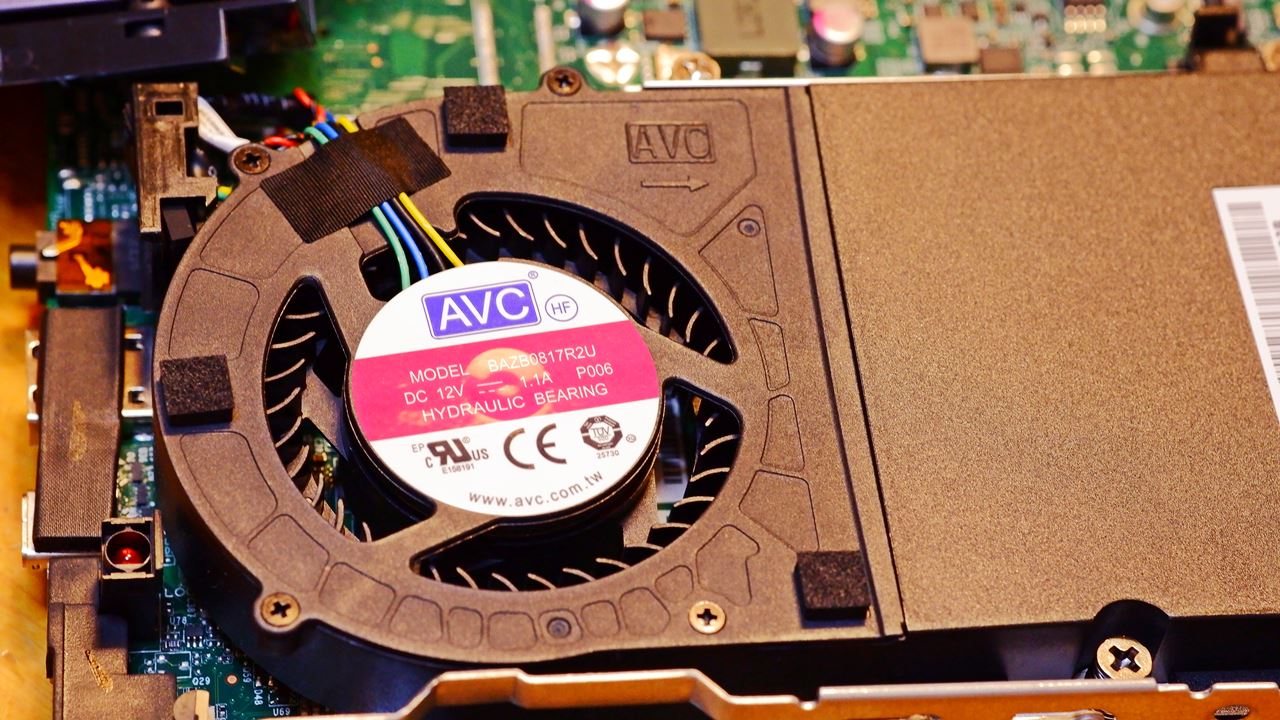
The previous ASUS VivoMini VC65 was essentially silent at idle (though it did become audible with age), and the ThinkCentre M710q Tiny before that was similarly near-silent at idle. I am a music lover and Hi-Fi enthusiast, and this is also, among other things, a PC audio blog — so for all those reasons, CPU fan noise that does not fall within my personal tolerance level is, well, a problem in more ways than one.

Looking at the measured noise comparison table over at Chimolog, the previous M75q-1 Tiny does indeed appear to have been considerably quieter. I suspect that improved cooling performance has come at the cost of acoustic quietness — and on this particular point, for my music-first use case, I am starting to think the HP ProDesk 405 G8 DM, which trades temperature headroom for quieter operation, might have been the better choice. Though from what I understand, that model runs into the opposite problem — temperatures reportedly exceed 90°C under load, which does seem rather concerning in its own right…
In the case of the ThinkCentre M75q Tiny Gen2, during typical office-type tasks with the default power settings, CPU temperature sits in the 40s°C. Switching to a low power consumption setting brings it down to the mid-30s°C. It drops further to 30°C at idle. Running at maximum performance settings pushes it up to the 50–60s°C range frequently, but the system appears to be designed to keep it within the 70s°C even at full load. Cooling performance is outstanding.
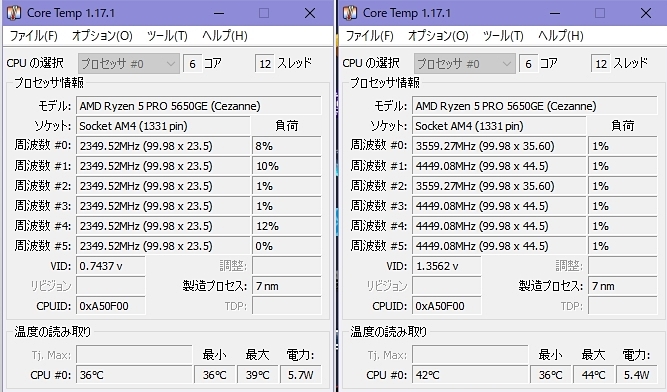
When I initially installed Windows 11, the fan noise was genuinely bad — but I could not bear the new OS’s interface and downgraded to Windows 10, and for some reason that alone made it noticeably quieter. With Windows 10, I have also set the power options to “Minimum processor state: 0%” and “System cooling policy: Passive” (note: these options no longer exist in Windows 11) — and even with these settings, temperatures remain low, which suggests the underlying cooling capacity is quite substantial.
Incidentally, capping CPU performance at 99% rather than 100% tends to reduce how much the overclocking headroom is used, and in that case temperatures can be maintained in the 30s°C, rising only to around 40s°C even under light load. For light tasks, the machine is still rather overpowered at present, so disabling OC does not seem to cause any issues.
That said, as a PC audio hub, the fan at idle is not quite at the level where I can ignore it entirely — and personally, if it were possible, I would like to try replacing the CPU fan with a quieter aftermarket alternative. After all, I do not normally push the machine hard in day-to-day use…
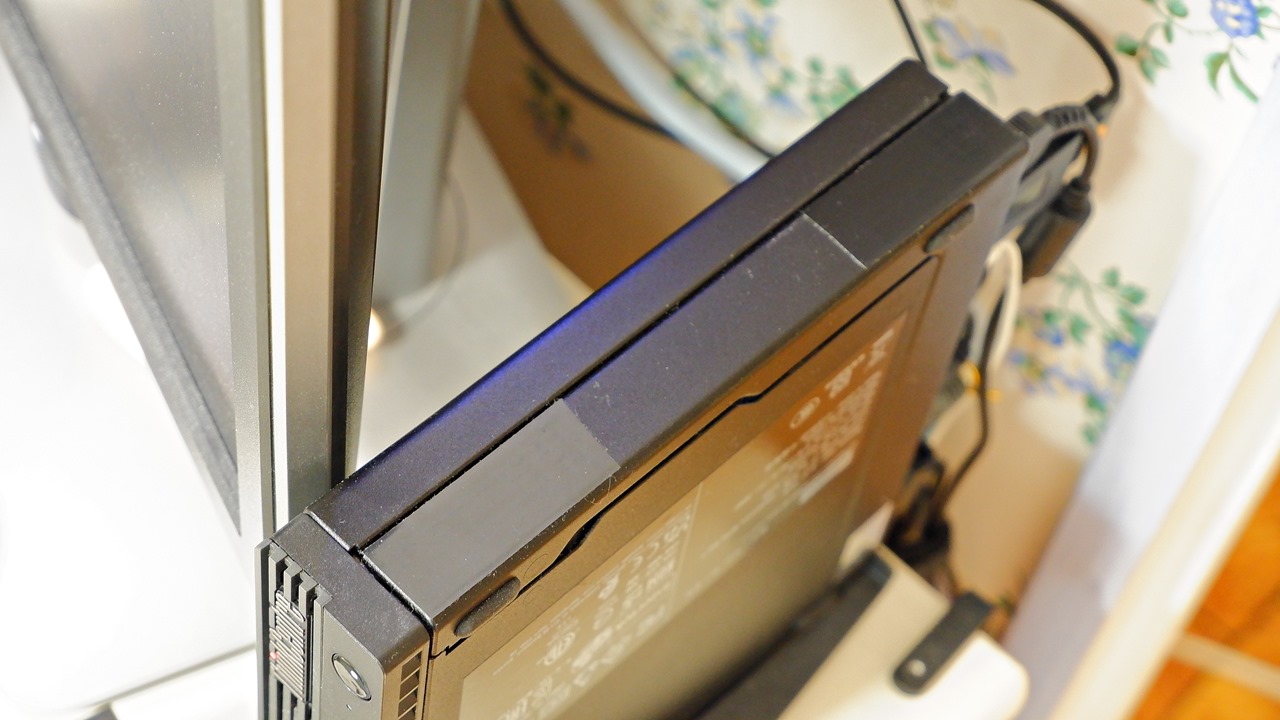
As a measure to reduce the “shhhh” fan noise during idling even slightly, I have — against better judgement — covered the ventilation slots on the top panel with black tape. Structurally, the main airflow is front intake × rear exhaust, so air still circulates even with the top slots sealed, and in normal use no measurable rise in CPU or SSD monitoring temperatures was observed. It does help reduce CPU cooler noise, but this is entirely at your own risk, so please bear that in mind. ※ Please do not try this if you are not confident managing temperatures. I believe earlier ThinkCentre models did not have ventilation slots on the top panel at all — my guess is that thermal measures were added as a precaution against users running the CPU continuously above 70°C for gaming and similar workloads.
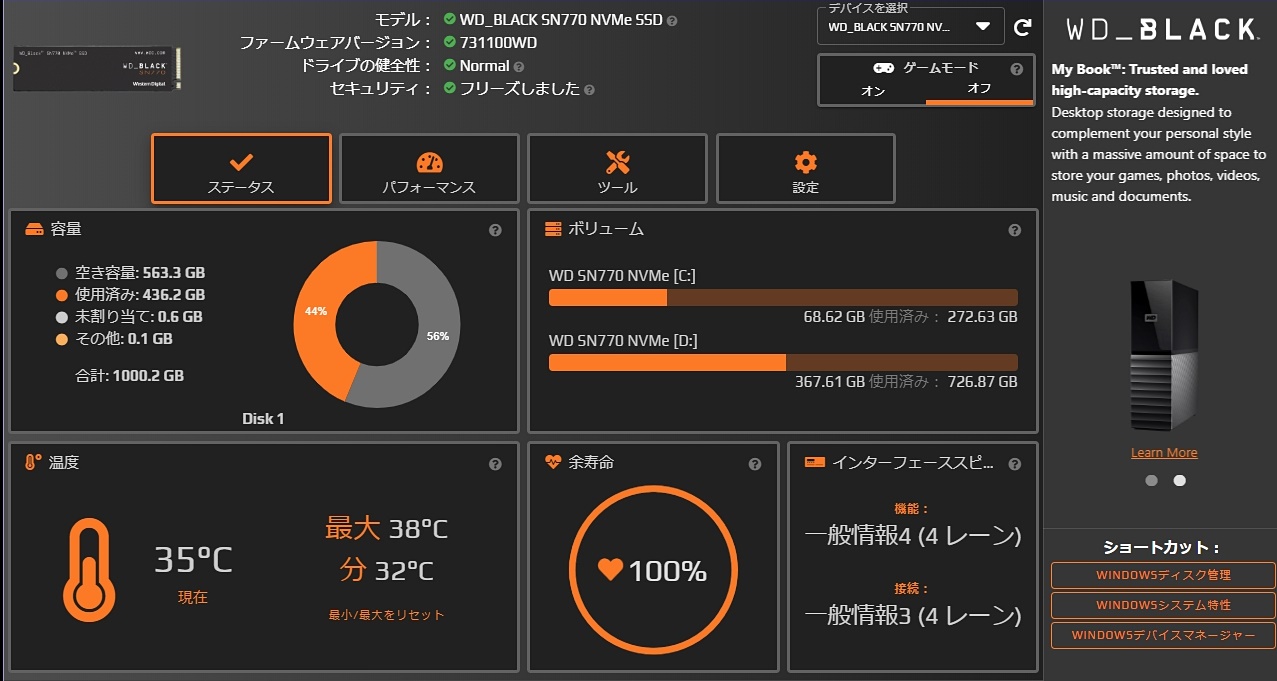
Being rather obsessive-compulsive about these things, I keep a constant eye on temperatures using Core Temp. In balanced mode, the CPU sits at around 40°C during general work, rises into the 50°C range during WordPress tasks, and occasionally spikes into the 70°C range when many applications are open at once — though that is very much a momentary peak rather than a sustained figure. The NVMe M.2 SSD runs at a steady 37°C or so.
It is also worth noting that dust accumulates inside a PC through fan intake, and this gradually makes it harder for temperatures to come down. In Mini PCs and Micro PCs, where internal space is tight and thermal headroom is limited, the effect of this internal dust build-up on temperatures can be quite significant — differences begin to appear even after just one or two months of use. Since dust is an indirect cause of component degradation and reduced longevity through heat, I make a habit of periodically opening the lid and, taking care to avoid static electricity, using the soft brush attachment of a vacuum cleaner (a Dyson and an Electrolux) to draw out the accumulated dust.
ポチップ
This has gone on long enough, so I will leave it here for now. In the following second part, I will cover hardware customisation such as memory and SSD upgrades, backup, downgrading to Windows 10, a comparison with the rival machine HP ProDesk 405 G8 DM, and the machine’s potential as a PC audio hub.
【Performance of the Lenovo ThinkCentre M75q Tiny Gen2】
Part 1|SSD Replacement|Part 2
Auto Translated by CS4.6